
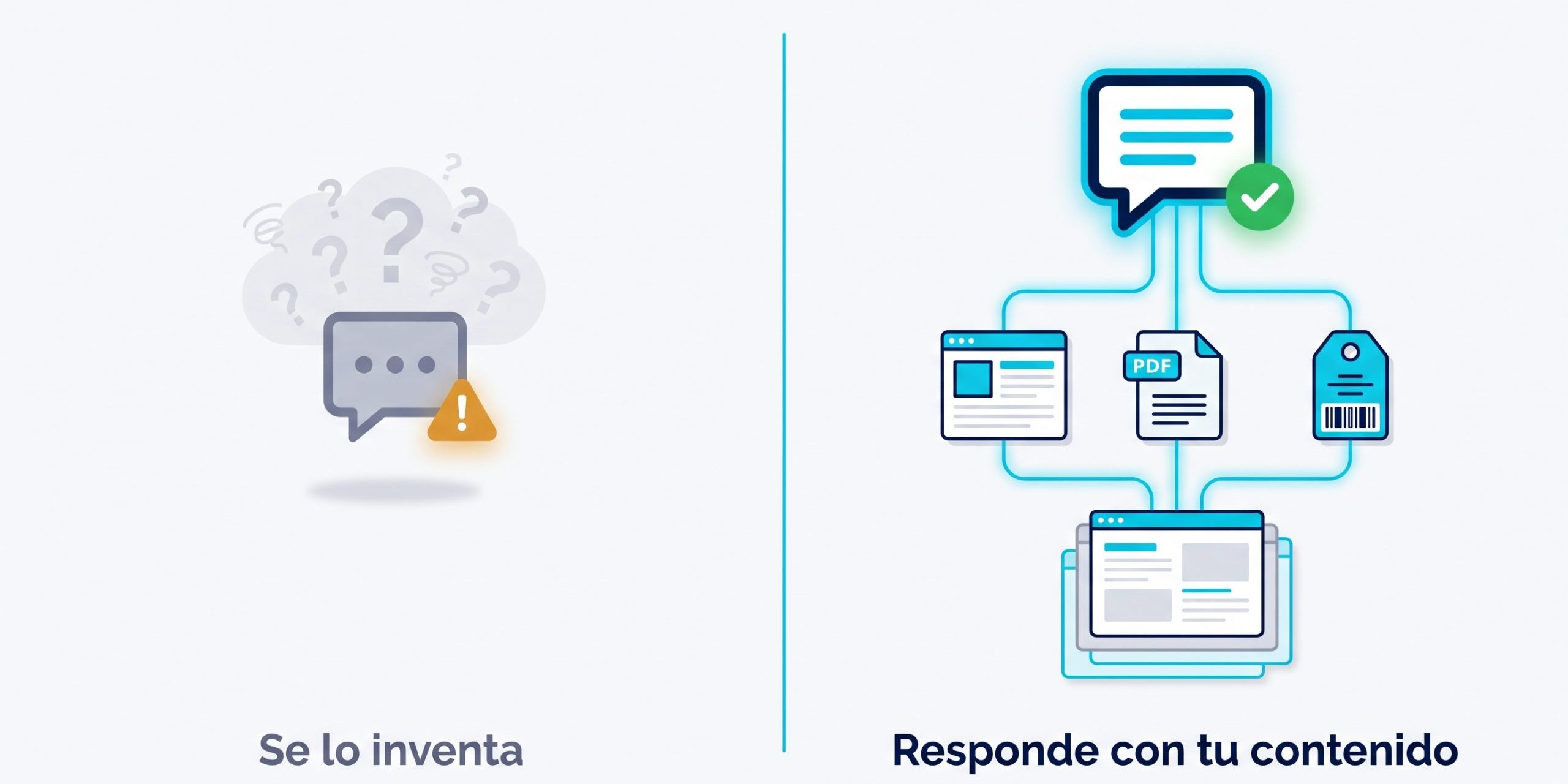
Pasting a generic ChatGPT in a corner of your website is easy. The problem is what happens next: a visitor asks about your prices, your return policy, or whether your product does such a thing, and the bot makes it up. Politely, with good writing and total confidence. And the one who looks bad is you.
The AI chatbot for WordPress that includes MCP Content Manager Premium since version 4.2 is built just the opposite. It can only respond with the content you have indexed: your pages, your posts, your products, and the documents you upload. And below each answer, it can show where it got it from, with links that the visitor can click to verify it.
When the answer is not in your content, it says so. That phrase — ‘I can’t find this on the web’ — is worth more than a hundred brilliant and invented answers.
What exactly is a chatbot with RAG
RAG stands for Retrieval-Augmented Generation, which sounds worse than it is. In plain English: before responding, the bot goes to search.
- First, you index. The plugin reads the content you tell it, breaks it into pieces, and saves each piece in your own WordPress database.
- Then someone asks. The plugin searches among those pieces for the ones that really relate to the question.
- And only then does the AI come in. It receives the question and the found pieces, with the task of responding with that and nothing else.
The practical difference is huge. A normal ChatGPT responds with what it learned from the internet months ago. This one responds with what is on your website today. If you changed a price yesterday and reindexed, today it answers with the new price.
What you can do with it
Answer the support queries you answer twenty times a month
If you have documentation, a FAQ, or posts explaining how your product works, you already have the bot trained: index it and you’re done. The repeated questions — ‘How do I change the license key?’, ‘Does this work with WooCommerce?’ — stop coming to your email. And since it cites the sources, the visitor ends up on your documentation page, which is where you wanted them to end up.
Sell better by resolving the doubt that hinders the purchase
In a WooCommerce store, index the products and the pages for shipping, returns, and warranty. The bot answers ‘Do you have it in size 42?’ or ‘How long does it take to get to the Canary Islands?’ with your real information, at eleven at night, which is when people buy and when you are not there.
Make useful documentation that no one reads entirely
You have an 80-page manual in PDF. No one opens it. Upload it to the bot and it becomes consultable in plain language: the visitor asks and receives the paragraph they are interested in, with a link to the document. It supports PDF, Word, Excel, CSV, and Markdown.
Give different answers to partners and to anonymous users
This is the part that usually surprises. You can separate what the bot knows into independent knowledge bases and decide who reads each one: everyone, only registered users, or only members of a specific plan. It works with MemberPress, WooCommerce Subscriptions, and Paid Memberships Pro.
Thus, the same chat on your website answers the public to anyone, and the reserved only to those who have paid. An anonymous visitor doesn’t receive a censored answer: it’s that that content doesn’t even enter the search.
Have multiple bots that don’t mix
You can create as many chatbots as you want, each with its own knowledge, design, and settings. One for technical support in the documentation, another for pre-sales on the product pages. One bot can never respond with the content of another, and the same knowledge base can feed several.
You choose the AI, and you pay for its consumption (or pay nothing)
Here there is no intermediary or markup per message. You put your own key and pay directly to the provider you choose:
- OpenAI (ChatGPT), Anthropic (Claude), Google (Gemini), Mistral, Groq, DeepSeek
- Any endpoint compatible with the OpenAI API
- Ollama, running on your own server
That last option deserves its own paragraph. With Ollama on your machine, the cost per query is zero and, what matters more to many businesses, no text from your visitors leaves your server. Neither the content of your website nor what people write in the chat. For a law firm, a clinic, or anyone handling sensitive data, that difference is what decides whether a chatbot can be used or not.
Where to place it
As a floating bubble in any of the four corners, with its own margins so it doesn’t sit on top of the back-to-top button or the cookie notice. Or embedded within a page, with the Gutenberg block, with the Elementor widget or with the shortcode .
The widget is self-contained: its styles live isolated, so it doesn’t clash with your theme nor does your theme misplace it. And it works in Multisite and with WPML and Polylang.
You will know what they are asking you
The integrated analytics is not a decoration: it is probably the most profitable part of all this. It tells you the most frequently asked questions, visitor ratings, response times, and estimated costs by provider.
But above all, it tells you the questions that the bot couldn’t answer. That list is gold: it’s your website telling you, with names and surnames, what information it lacks. Each unanswered question is a page you should write — and that, by the way, will position you on Google.
And what it doesn’t do, which is also worth mentioning
- It doesn’t crawl an entire site by itself. It indexes the content of your WordPress and the documents you upload, and it can read a specific webpage that you indicate. Automatically crawling the entire structure of a foreign domain is on the to-do list, not in this version.
- It’s not magic without maintenance. If you change content, you need to reindex for the bot to know.
- It doesn’t replace a person in what truly requires judgment. It replaces the twentieth time you explain the same thing.
In protection, it comes standard with request limits, optional captcha (reCAPTCHA v3, hCaptcha, or Turnstile) and content cleaning before showing anything. And if one day you uninstall, your conversations and documents are preserved by default: they are only deleted if you expressly check the box.
How to get started
- Activate the AI Chat module and paste the key of the provider you use (or point to your Ollama).
- Choose what content to index: content types and statuses. Start with the obvious — pages and documentation.
- Launch the indexing and wait for it to finish.
- Check who should see the bot and place it wherever you want.
- Ask it three or four difficult questions first, and see the sources it cites.
Frequently Asked Questions
Can the chatbot make up an answer?
It is built so that it doesn’t: it only receives fragments of your own content and the task of responding with them. When it doesn’t find anything relevant, it says so instead of filling the gap. And since each answer can show its sources, you and the visitor can check where it comes from.
How much does it cost to have it running?
The plugin license starts at €30/year, plus the consumption of the AI provider you choose, which you pay directly to that provider. If you use Ollama on your own server, that consumption is zero.
In what languages does it respond?
It responds to each visitor in the language they write in, regardless of the language of your panel. And the admin interface is translated into thirteen languages.
Are my visitors' data sent to an AI company?
It depends on the provider you choose, and that decision is yours. With OpenAI, Anthropic, or Google, the question and fragments travel to their API. With Ollama on your own server, nothing leaves: neither the question nor your content.
Do I need to know how to program?
No. A step assistant guides you through the setup, and placing the chat is just putting a block or a shortcode.
AI Chat is included in MCP Content Manager Premium, in all plans, starting at €30/year. All plans carry exactly the same plugin: the only difference is the number of sites.