WooCommerce
Point of Sale for WooCommerce with Bizum, gift cards, and scanned coupons: this is Advanced POS
Advanced POS for WooCommerce is a point of sale for your physical store that uses the same catalog, stock, and orders as your online store. Accept cash, use your card reader, accept Bizum or gift cards, apply coupons by scanning them, balance the cash register with X and Z reports, and manage returns and exchanges from the counter.
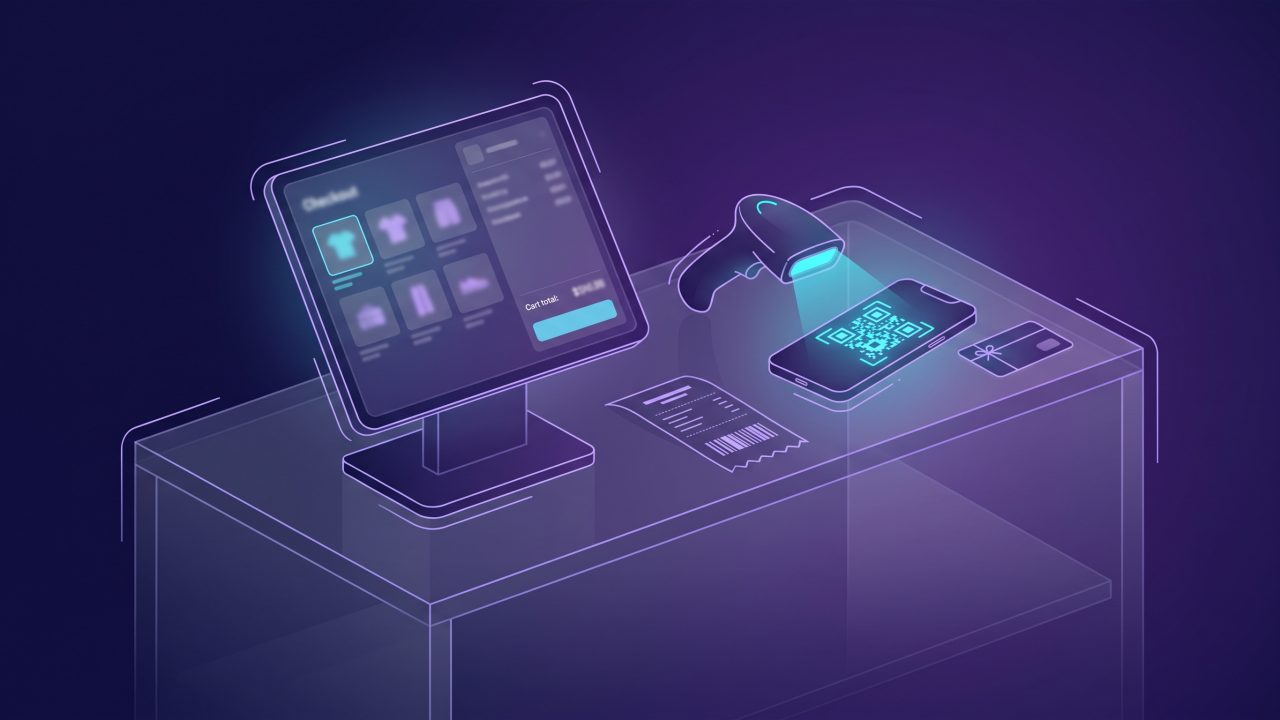
If you have an online store with WooCommerce and also sell in person, in a store, at a fair, or at a counter, you surely know the problem: two systems, two catalogs, two stocks that never match, and a cash register program that knows nothing about your website. Advanced POS for WooCommerce was created to solve that. It is a point of sale that works within your own WordPress, where each sale at the counter is a normal WooCommerce order.
I developed it myself, José Conti. I have been making plugins for WordPress and WooCommerce since 2004 and I am the author of the Redsys gateway for WooCommerce used by more than 40,500 stores in Spain, Portugal, and Andorra. That’s why this POS communicates with Redsys and accepts Bizum, something that international POS systems for WooCommerce do not do.
What is Advanced POS for WooCommerce
It is a full-screen POS that opens in tudominio.com/pos from any modern browser: a computer, a tablet, or a touchscreen POS. There’s no need to install applications or synchronize anything, because the POS directly uses the products, prices, taxes, customers, and stock from WooCommerce. What you sell at the counter disappears from the online store's stock at the same moment, and what is sold online becomes unavailable at the register.
- No fees per device or cashier: the license is per website, with unlimited cashiers and sales points.
- Designed to work quickly with keyboard, barcode reader, and touchscreen.
- With light and dark mode, accessible (WCAG 2.2 AA), and compatible with HPOS.
Features that users request and almost no POS for WooCommerce offers
Before writing a line of code, I analyzed the most well-known POS for WooCommerce and what their users request on the WooCommerce suggestion board, in their forums, and in their reviews. There are requests that have been repeated for years and that almost no one resolves. Advanced POS brings them from the first version.
Bizum in the physical store
In Spain, many customers want to pay with Bizum at the counter as well. Advanced POS allows it in two ways: by sending a payment request to the customer's mobile (by their number or searching by ID/NIF) or showing them a QR code that they scan with their mobile. The order is only considered paid when Redsys confirms the payment, never before. If the customer does not pay, the cashier cancels or the wait expires, and the sale remains open to be charged in another way. Returns of an order paid with Bizum go back to the customer via Bizum.
In this first version, Bizum works through WooCommerce Redsys Gateway with an activated Bizum gateway. In version 1.1 it will be included in the POS itself.
Gift cards that really work at the register
Gift cards in the POS are one of the most repeated requests on the WooCommerce suggestion board, and very few POS include them. In Advanced POS, they are sold at the register for any amount or issued from the WordPress dashboard, accepted as a payment method, and retain the remaining balance. They can also be used to refund money: to the original card, to another, or to a new one.
And they are secure: the codes are random and are never stored in plain text, and the balance lives in a movement record that prevents spending the same balance twice, even if two registers charge with the same card at the same time.
Coupons applied by scanning their barcode
If you distribute printed coupons (in brochures, on tickets, or in bags), it makes sense for the cashier to scan them just like a product. It is a specific request from WooCommerce users that none of the POS I analyzed resolved. In Advanced POS, the cashier scans the coupon with the same barcode reader used for products, and the discount is applied to the ticket. Just print its WooCommerce code on the coupon as a barcode: when what is scanned is not a product, the POS looks it up as a coupon and applies it.
A real cash register mode
Another historical request is a cash register mode for WooCommerce. Advanced POS is exactly that: a full-screen interface designed solely for selling, with its own shift start (each cashier confirms their password), its cash register, its keyboard shortcuts, and its exit, without the WordPress dashboard in between.
Charge as you do today
| Method | How it works |
|---|---|
| Cash | The cashier enters what the customer hands over and the POS tells them the change. The payment is recorded in their cash register. |
| Your card reader | You charge on your usual card reader and press "Paid" when the confirmation comes out. You are not dependent on a specific payment provider. |
| Bizum | Request to the customer's mobile or QR code, confirmed by Redsys. |
| Gift card | Pay with the balance and keep what’s left. |
| Split payments | Part in cash, part with card, part with gift card, in the same sale. |
| Your gateways | The gateways you already have activated in WooCommerce appear as payment methods. |
This marks an important difference with the POS mode of the WooCommerce app itself, which only works on mobile and ties you to its own payment methods. With Advanced POS, you charge with what you already have.
If the connection drops right when charging
With offline mode activated (it is off by default), if the internet drops right when the cashier confirms the payment, the sale is not lost: it is saved in the browser and sent automatically as soon as the connection returns, without duplicating any orders. To search for products, scan, apply coupons, or start a new sale, the POS needs a connection.
A day in the store with Advanced POS
- Open the cash register. The cashier enters the POS, confirms their password, and opens their cash register with the initial float.
- Sell. Scan, search, or browse categories. Choose size or color in variable products, apply coupons (also by scanning them), assign the customer, or sell as a counter customer. If another customer arrives, park the sale and retrieve it later.
- Charge. Cash with change, card reader, Bizum, gift card, or a combination. The ticket is printed on the template you choose (basic, thermal, or A4) or sent by email, with a barcode to find the order.
- Return or exchange. Search for the order by number, customer, or phone. Return everything or part, to the original method, in cash or to a gift card. In a product exchange, the POS calculates the difference: if the new one costs more, the customer pays; if it costs less, they are refunded. The stock is replenished automatically.
- Request authorization without moving. If the cashier does not have permission for a return or for a discount above their limit, a supervisor authorizes it right there with their credentials.
- Close the cash register. During the shift, the X report shows how the cash register is doing. When closing, the cashier counts the cash and the Z report records the difference between what was counted and what was expected.
Meanwhile, supervisors see in the reports the billing, the number of tickets, the best-selling products, the distribution by payment method, and the returns.
What sets it apart
- Everything is WooCommerce. There is no parallel database or failing synchronizations: each sale is a WooCommerce order and uses its stock. That is precisely the problem that is most repeated in the reviews of other POS systems (stock that does not match, sales of out-of-stock products).
- For stores in any country, with an extra for Spain. Cash, card reader, gift cards, and your WooCommerce gateways work wherever your store is. If you sell in Spain, add Bizum with Redsys and your customers' ID/NIF.
- Control at the counter. Discounts with limits per cashier and supervisor authorization on the spot, for returns and discounts.
- Audited security. Before being published, the plugin underwent a complete security audit and two additional audits, with all findings corrected.
- No fees per position. You pay an annual license per website, not per cashier, tablet, or physical store.
- Open to developers. Own REST API and more than 180 actions and filters to adapt it to your business, with ticket templates overwritable from the theme.
Price and licenses
| License | Price |
|---|---|
| 1 site | 90 € per year |
| 2 sites | 165 € per year |
| 3 sites | 230 € per year |
| 5 sites | 330 € per year |
Each license includes unlimited cashiers and sales points on the site, one year of automatic updates, and support in Spanish, Catalan, or English, directly with me. Are you a legally registered NGO? Check the NGO program: free premium plugins with lifetime support.
Requirements
- WordPress 6.2 or higher and WooCommerce 8.0 or higher (tested up to WordPress 7.1 and WooCommerce 11.3).
- PHP 7.4 or higher.
- A modern browser on the counter's equipment.
- A USB or Bluetooth barcode reader that works as a keyboard, if you want to scan (optional).
- For Bizum: WooCommerce Redsys Gateway with an activated Bizum gateway.
Frequently asked questions
Do I need separate POS software?
No. The POS works within your WordPress, in tudominio.com/pos. You only need a browser on the counter's equipment.
Can I charge with Bizum in my physical store?
Yes, with WooCommerce Redsys Gateway and an activated Bizum gateway: payment request to the customer's mobile or QR code. The request to the mobile requires that your bank has activated that Bizum service on your virtual POS.
Does it connect with my card reader?
You charge with your usual card reader and the cashier confirms the payment in the POS by pressing "Paid". The POS does not send the amount to the card reader, so it works with any bank.
What happens if the internet drops in the middle of a sale?
If you have offline mode activated and the connection drops right when charging, the sale is saved in the browser and sent automatically when the internet returns, without creating duplicate orders. While there is no connection, you cannot search for products, scan, or start new sales, and sales paid with gift cards are not saved.
How many cashiers or sales points can I have?
As many as you need. The license is per website, not per cashier or device.
Does it work with barcode readers?
Yes, with any reader that works as a keyboard (USB or Bluetooth), which is the vast majority. No specific model is required, nor do you need to install anything: the reader "types" the code into the POS. It scans products and also coupons.
Can I manage multiple stores or warehouses?
Not in this version: each site works with its WooCommerce stock.
Do I lose data if I delete the plugin?
No. Orders are WooCommerce orders and are retained. POS data (cash registers, gift cards, settings) are only deleted if you explicitly activate "Delete data on uninstall."
Start selling in your physical store
Install the plugin, follow the six-step wizard, and open tudominio.com/pos. In a few minutes, you will have your first sale at the counter, with the same catalog and the same stock as your online store.